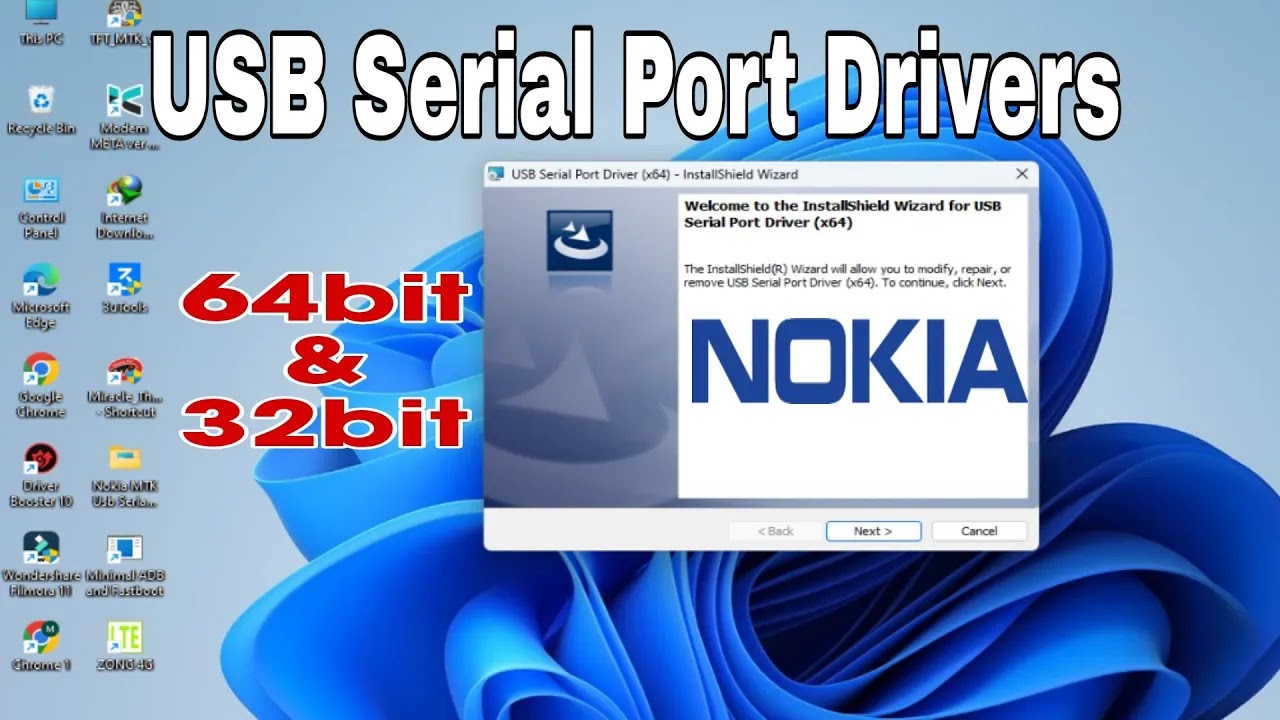
Install Nokia MTK USB Serial Port Driver 64bit & 32bit || Fix Nokia Unknown USB Port
Download and install Nokia MediaTek USB drivers to flash keypad and Android devices without connection errors.
Hello friends! When connecting Nokia keypad feature phones and Android devices to your computer for flashing, firmware repair, or bypassing pattern locks, generic USB drivers are often not sufficient. When you attempt to flash MediaTek (MTK) chipset devices using SP Flash Tool, Infinity CM2, or other service utilities, you will frequently encounter connection failures. The device might connect momentarily and then disconnect, or Windows will show an “Unknown USB Device” error or fail to recognize the MediaTek Preloader COM Port. To resolve these driver conflicts, it is essential to install the Nokia MTK USB Serial Port Driver on your PC. This specialized software establishes a reliable virtual COM port bridge between your Windows computer and the MediaTek processor. This guide provides download links and step-by-step instructions to install these drivers correctly. These drivers are fully optimized for both 32-bit and 64-bit Windows operating systems. Follow the instructions below carefully to configure your system for successful connectivity.
📺 Installation Method Tutorial Video
📋 Driver Technical Specifications
-
Driver Name: Nokia MediaTek USB Driver Package (VCOM Serial Port). -
Compatible Systems: Microsoft Windows XP, 7, 8, 10, and Windows 11. -
System Architecture: Full compatibility with both 32-bit (x86) and 64-bit (x64) platforms. -
Chipset Support: All MediaTek (MTK) keypad models and Android smartphone platforms. -
Supported Utilities: SP Flash Tool, Miracle Box, Infinity CM2, Volcano Box, MRT Dongle, and UMT.
📋 Requirements and Checklist
Before beginning the installation, ensure you have the following requirements ready:
-
A laptop or desktop computer running a functional Windows OS with admin access. -
A high-quality micro USB data cable (ensure it supports data transfer, not just power charging). -
An archiver tool like WinRAR or 7-Zip installed on your computer to extract the files.
📋 Step-by-Step Driver Installation Guide
Follow these detailed steps to download and install the drivers on your computer:
-
1Download Package: Download the compressed Nokia MTK driver archive from the download link at the bottom of this page.
-
2Extract the Zip: Extract the downloaded file to your desktop using the password
saifi123. -
3Verify Architecture: Check your system architecture. Right-click on ‘This PC’ or ‘My Computer’, select Properties, and see if it is 64-bit or 32-bit.
-
4Run the Setup: If you are running 64-bit Windows, launch the x64 setup executable. For 32-bit systems, execute the x86 setup file.
-
5Accept Prompts: Follow the on-screen installer instructions. Click Next to allow the utility to copy the driver files.
-
6Bypass Security Warning: If a Windows Security prompt appears asking to verify the driver publisher, select ‘Install this driver software anyway’ to proceed.
-
7Complete Setup: Wait for the installation progress bar to finish and click the Finish button to exit the installer.
-
8Reboot the PC: Restart your computer immediately to register the virtual COM ports and apply device configuration.
-
9Verify Detection: Power off your Nokia phone, connect it to the PC, and check Windows Device Manager under ‘Ports (COM & LPT)’ to confirm it registers as MediaTek Preloader.
📋 Troubleshooting Driver Errors
If you encounter problems during the connection or setup process, try these troubleshooting solutions:
-
Signature Enforcement: If Windows blocks the driver setup, restart your computer in ‘Disable Driver Signature Enforcement’ mode and reinstall the drivers. -
Unrecognized Device: Connect your device to a USB 2.0 port instead of USB 3.0. Use the rear motherboard ports on desktop computers. -
Yellow Triangle Warning: If a yellow warning icon appears in Device Manager, right-click the item, choose Update Driver, select Browse My Computer, and select the extracted folder manually.
The driver package is compressed inside a secure zip folder. You will need to use the extraction password saifi123. If you encounter any connection issues or need online setup assistance, feel free to contact us on WhatsApp at 0320-7311862 for remote setup assistance.
Click the button below to initiate the secure download connection.