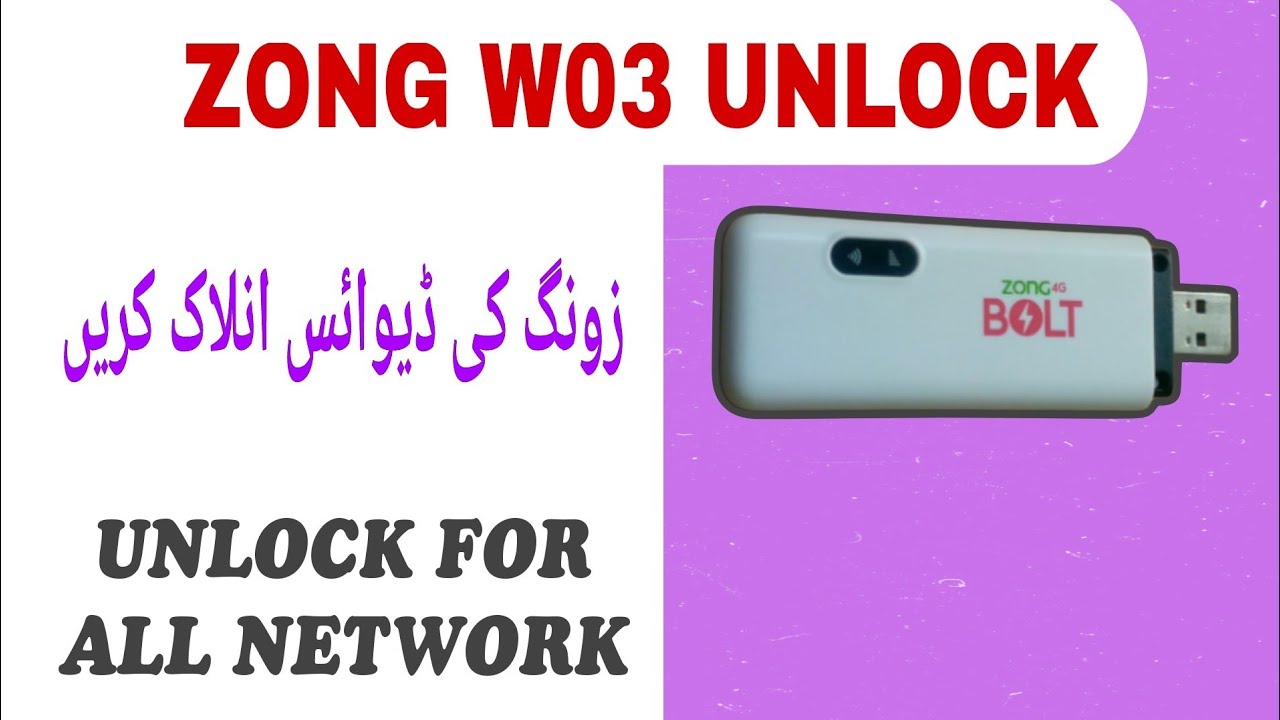
Zong 4G Wingle W03 Qualcomm Unlock & All Network SIM Fix
Complete flashing guide to repair network lock and unlock Zong W03 Qualcomm wingles for all network SIM cards.
Hello friends! If you are utilizing the Zong 4G Wingle W03 Qualcomm-based 4G LTE USB wingle and your device is locked to a single carrier network, this tutorial guide will be highly beneficial for you. By default, the Zong W03 device is locked, showing invalid SIM errors or network-restricted status if you insert any other operator’s SIM card. This premium flashing guide explains how to write the correct partition files using Qualcomm Emergency Download (EDL) Mode. By employing this premium flashing firmware and unlocking utility, you can easily repair the cellular baseband system on your device. This process permanently factory-unlocks your wingle so it is fully compatible with SIM cards from any cellular carrier, including Jazz, Zong, Telenor, Ufone, and SCOM. Below, we provide the requirements, technical details, and step-by-step flashing instructions.
Unlike other generic devices, the Zong W03 uses a Qualcomm chipset that requires putting the hardware into EDL mode (Qualcomm HS-USB QDLoader 9008) to safely write the partition changes. Writing to the secure partitions is not possible in normal mode, which is why we trigger EDL mode using the reset hardware interface. Once the security parameters are successfully patched, the device is factory unlocked permanently and won’t get locked again even after a hard reset.
📺 Unlocking Method Tutorial Video
📋 Supported Devices & Versions
-
Zong Wingle W03: Compatible with all active firmware versions and security patches. -
Chipset Type: Fully compatible with Qualcomm-powered Zong W03 hardware revisions. -
Restored Features: Stable network signal lock, automated cellular reconnection, and original WebUI functions.
📋 Requirements and Pre-requisites
Please check that you have prepared the following items before connecting your USB wingle:
-
A laptop or desktop computer running a functional Windows operating system. -
Official Qualcomm HS-USB QDLoader 9008 drivers installed to support EDL serial communication. -
The premium flashing tool package (download link available at the bottom of this guide).
📋 Step-by-Step Instructions
Follow these flashing steps carefully to execute the repair script:
-
1Download Package: Download the compressed Qualcomm W03 wingle flash archive from the download section below.
-
2Driver Check: Ensure that the Qualcomm QDLoader 9008 drivers are successfully installed on your PC.
-
3Press Reset Button: Locate the physical reset button inside the wingle casing and hold it down.
-
4Establish USB Connection: Keep holding the reset button while plugging the wingle into your computer’s USB port.
-
5Run Option 1: Launch the unlock utility tool on your PC. Enter the password saifiw03 and select Option 1.
-
6Enter EDL Mode: This option will command the device to enter EDL (Emergency Download Mode). Verify in Device Manager under Ports (COM & LPT) that it shows as ‘Qualcomm HS-USB QDLoader 9008’.
-
7Execute Unlock: Once the device is recognized in EDL mode, press the unlock button inside the tool interface to start the flashing process.
-
8Execute Flashing: Wait for the script to write target partitions to the wingle. Do not disconnect the wingle during this operation.
-
9Automatic Reboot: The wingle will reboot itself automatically when flashing is complete. The network lock is successfully removed and all SIMs will work.
📋 Essential Safety Warnings
To ensure a safe installation, keep these warnings in mind:
-
Stable USB Link: Do not unplug the USB wingle while flashing is in progress in EDL mode to avoid corrupting the flash sectors. -
Driver Hangs: If the tool status shows ‘waiting for device’ for a long time, check Device Manager to see if the Qualcomm port is active.
This software utility is a premium solution that requires activation credentials. If you experience errors during the flash or have questions about serial activations, contact our support team.
Click the button below to initiate the secure download connection.