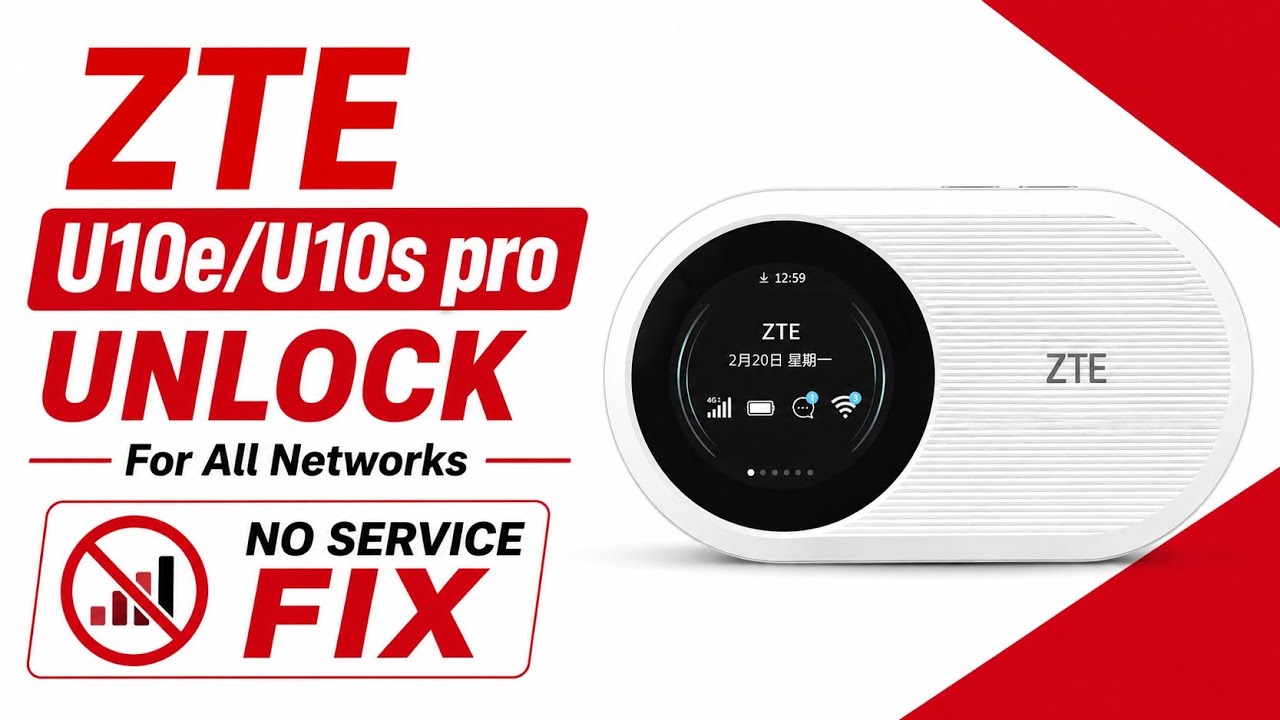
ZTE & Etisalat U10e / U10s Pro All SIM Unlock & No Service Fix
Complete flashing guide to unlock ZTE U10e and U10s Pro pocket Wi-Fi routers for all networks.
Hello friends! If you are utilizing the ZTE U10e or ZTE U10s Pro (Etisalat version) pocket Wi-Fi router and want to use other network SIM cards like Jazz, Telenor, Ufone, or Zong, this tutorial guide will be highly beneficial for you. By default, these portable routers are locked to their respective networks, showing invalid SIM errors or network-restricted status if you insert any other operator’s SIM card. Unlocking your ZTE pocket Wi-Fi allows you to choose the best network packages and internet coverage depending on your location. This premium guide helps you unlock your device and resolve common No Service or No Signal issues. Below are the simple instructions to complete the process.
Please note that this is a premium paid solution. The unlocking utility software is highly interactive and attractive, designed to safely write the unlock configurations to the device’s secure NVRAM sectors. This tool establishes connection via a diagnostic COM port, enabling a clean and safe unlock without opening the physical hardware of the device. Because this is a paid tool, you will need activation credentials or remote assistance from our team to complete the unlock. Unlocking your U10e and U10s Pro will give you the freedom to switch networks whenever you travel, saving you from expensive roaming charges.
📺 Unlocking Method Tutorial Video
📋 Supported Devices & Versions
-
ZTE U10e: Network unlocking and No Service issue repair. -
ZTE U10s Pro (Etisalat): All firmware versions and build revisions are supported.
This unlock software works by writing factory-original network configs back to the device’s security partitions. Often, when users try to flash wrong firmware files, the IMEI gets corrupted or baseband settings get damaged, leading to persistent ‘No Service’ status even if the SIM is valid. Our software fixes these hardware identification and network registration settings instantly. Once the unlock button is pressed, the tool automatically verifies the device’s current parameters and applies the correct signal patches.
📋 Requirements and Pre-requisites
-
A laptop or computer running Windows operating system. -
ZTE USB diagnostic and serial port drivers installed on your PC. -
The premium ZTE U10e / U10s Pro Unlock Tool.
📋 Simple Step-by-Step Instructions
-
1Turn Device ON: Turn on your ZTE U10e or U10s Pro device normally.
-
2Connect USB: Plug the device into your computer using a reliable USB cable.
-
3Run Tool: Extract the downloaded folder and open the unlock tool on your computer.
-
4Open Port: Select the active diagnostic COM port in the tool and click Open Port.
-
5Unlock: Click the Unlock button to write secure settings.
-
6Restart: The device will restart automatically. Insert any SIM card and enjoy all networks.
📋 Essential Safety Warnings
-
Stable USB Link: Do not unplug the USB cable while the tool is writing configurations. -
Port Closed Error: If the tool gives a port error, make sure no other software is using the COM port.
Click the button below to watch the complete step-by-step video guide on YouTube.