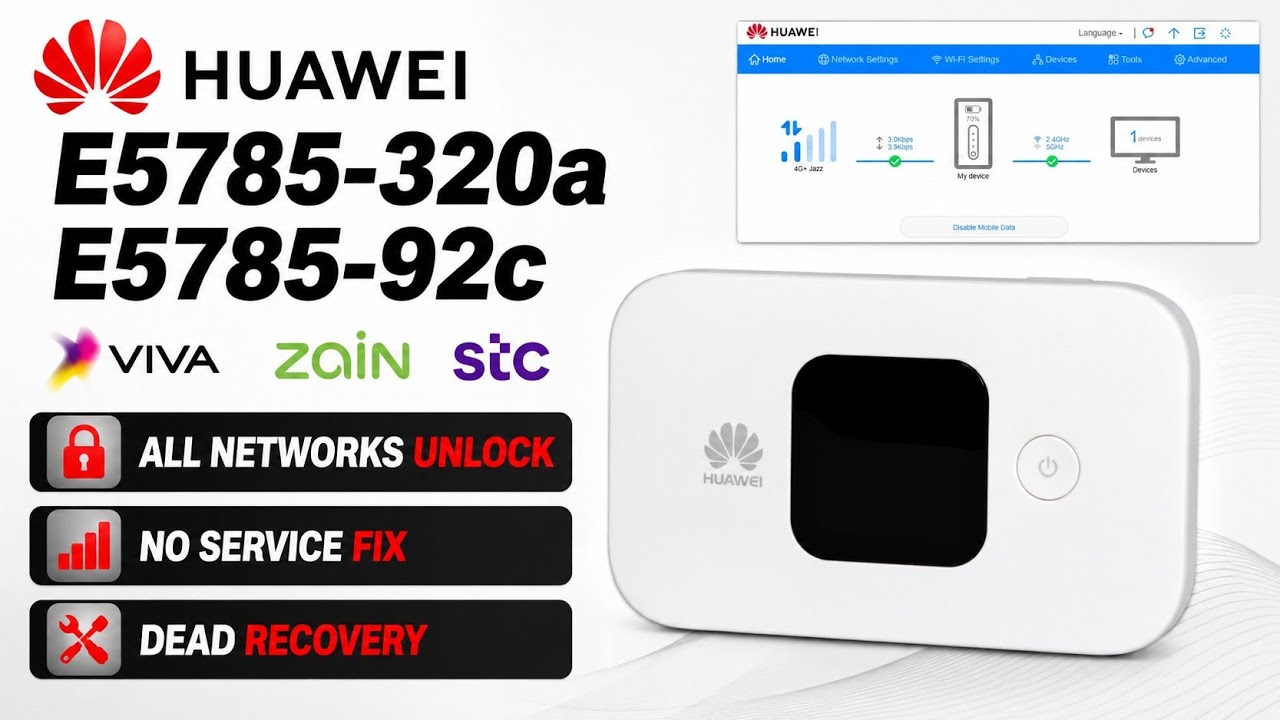
Huawei E5785-320a & E5785-92c All SIM Unlock & No Service Fix (Premium Guide)
Complete step-by-step hardware test point and flashing guide to unlock Huawei E5785 pocket Wi-Fi routers for all networks and fix signal issues.
Hello friends! Welcome back to another premium guide. If you are using the Huawei E5785-320a or Huawei E5785-92c pocket Wi-Fi router (often locked to specific network operators like Zong, Etisalat, or other global carriers) and want to use it with any other SIM card, you have come to the right place. By default, these portable 4G LTE routers are restricted to their native networks. If you insert a SIM card from another network operator such as Jazz, Telenor, Zong, Ufone, or any international carrier, your device will show an invalid SIM message or a restricted network status. Unlocking your Huawei E5785-320a and E5785-92c pocket Wi-Fi gives you the ultimate freedom to choose the cheapest data plans and best coverage based on your location.
This tutorial is a comprehensive guide to unlocking your router and fixing the persistent “No Service” or signal loss issue that frequently occurs after incorrect flashing or firmware updates. Please note that this is a premium paid solution. The specialized flashing utility tool is designed to rewrite secure nvram blocks and patch the modem partition. This process requires a Windows computer, a reliable micro-USB/Type-C cable, and opening the physical device to shorten the boot pins (hardware test point). Since this is a premium paid tool, you will need a valid password or remote activation support from our team to proceed with the flashing.
Why does the “No Service” issue happen? When users attempt to flash incompatible firmware versions on their Huawei E5785-320a or E5785-92c, the security partitions can get corrupted, resulting in a damaged baseband or invalid IMEI. This makes the router unable to register on any network, showing a constant red light or no signal bars. Our software utility acts as a complete repair tool that restores the factory-original network calibration settings, repairs the modem baseband, and unlocks the SIM lock status simultaneously, ensuring your device gets full 4G LTE signals.
📺 Unlocking Method Tutorial Video
📋 Supported Devices & Models
-
Huawei E5785-320a: Complete SIM unlocking, baseband repair, and signal fix. -
Huawei E5785-92c: All hardware revisions, boot pin test points, and network patches are fully supported.
📋 Requirements and Pre-requisites
-
A laptop or computer running Windows OS (Windows 10 or 11 recommended). -
A high-quality USB data cable to ensure a stable connection during flashing. -
Huawei USB Datacard drivers and COM port drivers installed on your PC. -
Fine-tipped tweezers or a copper wire to trigger the hardware test point. -
The premium Huawei E5785 Unlock and Flashing Tool (obtained from our support team).
📋 Simple Step-by-Step Instructions
-
1Disassemble Device: Gently open the casing of your Huawei E5785-320a or E5785-92c to expose the motherboard. Remove the battery.
-
2Connect Test Point: Locate the hardware boot/test point on the board. Short the designated pin to ground using tweezers, and plug in the USB cable to your PC.
-
3Install Drivers: Open Device Manager. You should see the device listed under COM ports. Make sure the Huawei Datacard driver is fully installed and showing no warnings.
-
4Run Flashing Tool: Extract the premium tool package on your PC and run the executable application. Enter the required password to access the tool.
-
5Flash Firmware: Once the tool identifies the COM port, press 1 on your keyboard to start the flashing process. Wait for it to complete.
-
6Fix No Service: After the flashing process finishes, wait a few seconds until the PC re-detects the Huawei driver interface. Then, press 2 in the tool menu to apply the “No Service” signal fix.
-
7Reassemble and Enjoy: Once the tool shows success, disconnect the device. Reassemble the body, insert any network SIM card, power it on, and enjoy high-speed 4G LTE internet!
📋 Essential Safety Warnings
-
Stable Power: Ensure your laptop has enough charge or is plugged into a power source so it doesn’t shut down during the flash. -
No Disturbance: Do not move or disconnect the USB cable during the flashing or NVRAM writing steps, as this can hard-brick your router.
Click the button below to watch the complete step-by-step video guide on YouTube.