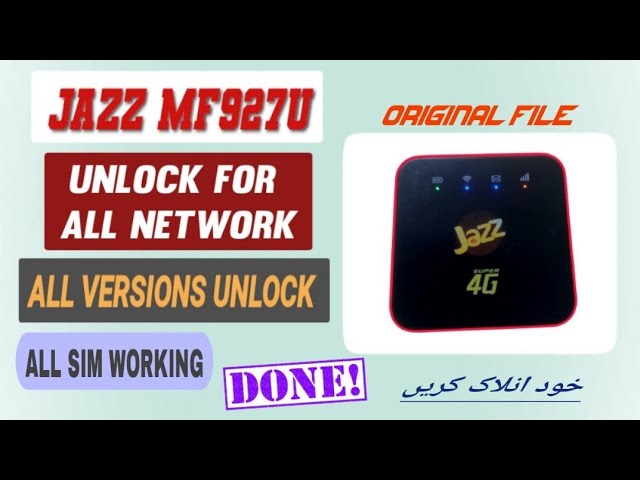
ZTE Jazz MF927U Unlock Guide
Complete AT command unlock method for ZTE Jazz MF927U pocket Wi-Fi router.
Hello friends! In this comprehensive post, we will explain the detailed method to unlock the ZTE Jazz MF927U pocket Wi-Fi router. The Jazz MF927U is a popular 4G LTE portable mobile hotspot widely used to share high-speed wireless internet with multiple devices simultaneously. However, out of the box, this pocket router is network locked exclusively to the Jazz network. This means you are completely restricted from using SIM cards from alternative mobile network operators like Zong, Telenor, Ufone, or SCOM in Pakistan. In this tutorial guide, we share the step-by-step flashing and AT command configuration method to convert your router into a fully factory-unlocked device. By applying this process, your hotspot will support GSM SIM cards from any local or global network provider. Below, you will find the technical hardware overview, the requirements checklist, and the step-by-step unlocking instructions.
📺 Unlocking Method Tutorial Video
📋 Hardware Overview
-
Device Brand & Model: ZTE Jazz MF927U mobile pocket hotspot. -
Network Standards: Compatible with 4G LTE, 3G HSPA+, and 2G EDGE cellular bands. -
Maximum Speed: Capable of up to 150 Mbps download speed and 50 Mbps upload. -
Client Connectivity: Shares wireless internet connection with up to 9 users simultaneously. -
SIM Form Factor: Dedicated Micro SIM card slot interface.
📋 Requirements Checklist
Before initiating the software unlocking procedure, ensure you have prepared the following requirements:
-
A laptop or computer running a functional Microsoft Windows operating system. -
A standard USB data cable to establish a stable connection between the router and the PC. -
The official ZTE USB COM port drivers installed on your computer. -
The ZTE MF927U unlock flashing package (download link available at the bottom).
📋 Step-by-Step Instructions
Follow these step-by-step instructions carefully to open the port and flash the configuration variables:
-
1Connect the Device: Connect your ZTE MF927U router to your PC or laptop using the USB cable and verify it powers on.
-
2Driver Check: Confirm that the ZTE USB drivers are properly loaded and recognized by the Windows system.
-
3Open COM Ports: Launch the
scsi.exeutility from the extracted files. This initiates SCSI commands to switch device modes and open diagnostic ports. -
4Verify ZTE AT Port: Open Windows Device Manager and check under Ports (COM & LPT) to ensure the ‘ZTE AT Port’ is active.
-
5Run Flashing Utility: Open the main ZTE unlocking tool on your PC.
-
6Select Firmware: Load the custom configuration unlock file into the flashing software interface.
-
7Initialize Soft Reset: Enter the command
at^zsoftresetinto the command entry field of the tool and press Enter to start. -
8Wait for Completion: The tool will write the unlocking partitions to the memory. The device will automatically reboot. Do not disconnect the USB cable during this period.
-
9Reset NVRAM Parameters: Re-open the communication interface in the tool, type the factory reset command
at^zreset, and press the Enter button. -
10Final Reboot: Type the command
at^zsoftresetonce again and press Enter to save settings and restart. -
11Device Initialization: The router will boot up in normal operational mode.
-
12Insert Any SIM: Unlocking is now successfully complete. Insert a SIM card from any carrier and connect your devices.
📋 Troubleshooting & Support Tips
If you encounter errors during the COM port detection or flashing phase, refer to the following tips:
-
AT Port Discrepancies: If the port does not appear in Device Manager, reconnect the USB cable, restart the router, or connect to a USB 2.0 port. -
Battery Warning: Always charge the pocket hotspot battery to at least 60% before flashing to prevent sudden shut downs. -
Antivirus Flags: Security utilities may classify mode switcher files (likescsi.exe) as false positives. Disable antivirus temporarily before downloading.
This unlock parameters file package is archived for security. You can download the file package from the section below and use the extraction password saifimobiles113. For driver issues, file access, or online technical support, reach out to us on WhatsApp at 0320-7311862.
Click the button below to initiate the secure download connection.