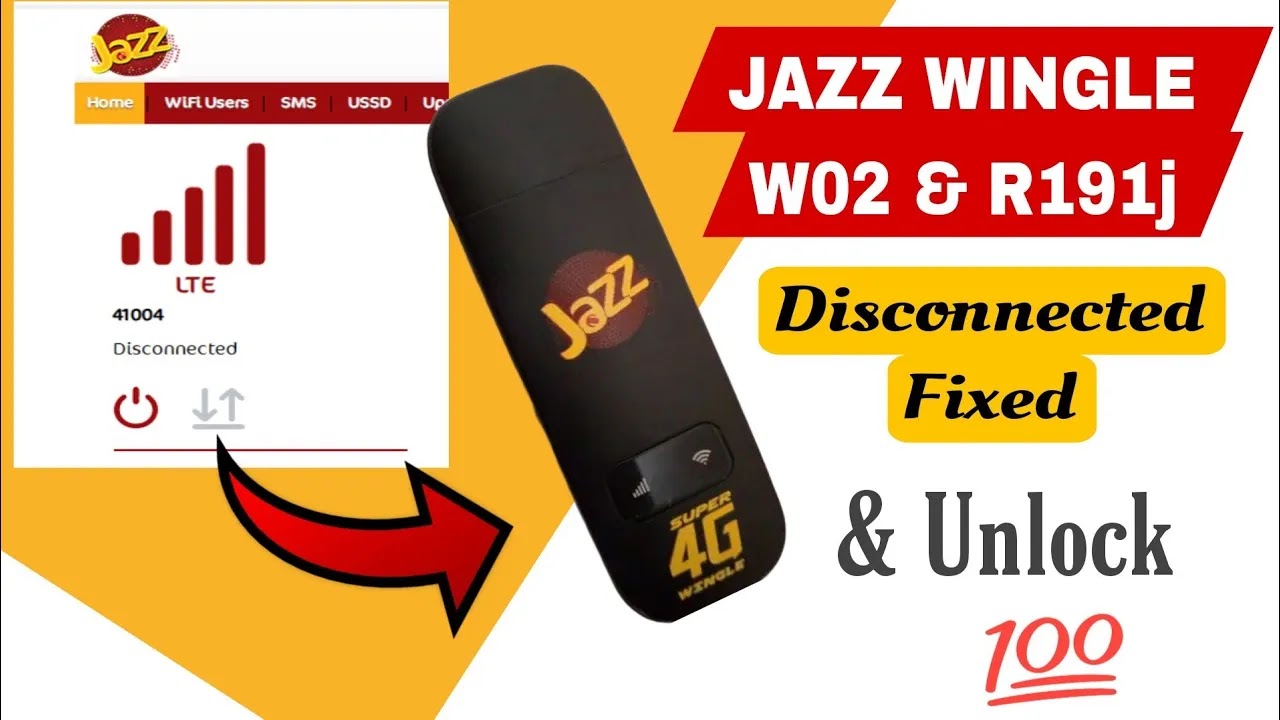
Jazz Wingle W02-LW43 & R191j Disconnected Problem Fix & Unlock
Complete flashing guide to repair disconnected network status and unlock Jazz W02 and R191j wingles for all networks.
Hello friends! If you are utilizing the Jazz Wingle W02-LW43 or the R191j 4G LTE USB wingle and your device is constantly displaying a “Disconnected” status on the WebUI dashboard, or experiencing a complete lack of network signal bars, this tutorial guide will be highly beneficial for you. The disconnected status or signal drops are usually triggered by corrupt partition parameters, configuration errors, or failed updates. By employing this premium flashing firmware and unlocking utility, you can easily repair the cellular baseband system on your device. This process not only resolves the persistent disconnected problem permanently but also factory-unlocks your wingle. Once unlocked, the device is fully compatible with SIM cards from any cellular carrier, including Jazz, Zong, Telenor, Ufone, and SCOM. Below, we provide the technical specifications, requirements, and step-by-step flashing instructions.
📺 Unlocking Method Tutorial Video
📋 Supported Devices & Versions
-
Jazz Wingle W02-LW43: Compatible with all active firmware versions and security patches. -
Jazz R191j Wingle: Full compatibility with all build revisions (both black and white devices). -
Restored Features: Stable network signal lock, automated cellular reconnection, and band modifications.
📋 Requirements and Pre-requisites
Please check that you have prepared the following items before connecting your USB wingle:
-
A laptop or desktop computer running a functional Windows operating system. -
Official ADB and Fastboot drivers installed to support bootloader communications. -
The premium flashing tool package (download link available at the bottom of this guide).
📋 Step-by-Step Instructions
Follow these flashing steps carefully to execute the repair script:
-
1Download Package: Download the compressed wingle flash archive from the download section below.
-
2Driver Check: Ensure that the Fastboot and ADB serial drivers are successfully installed on your PC.
-
3Press Reset Button: Locate the physical reset button inside the wingle casing or on the outer side and hold it down.
-
4Establish USB Connection: Keep holding the reset button while plugging the wingle into your computer’s USB port.
-
5Confirm Interface Mode: Open Windows Device Manager and verify if the device is recognized as ‘Android Bootloader Interface’ or ‘ADB device’.
-
6Run Flashing Utility: Extract the folder, open it, and launch the flashing executable as administrator.
-
7Provide Credentials: When prompted, enter the activation keys or flashing passwords (reach out to us on support to get activation details).
-
8Execute Flashing: Wait for the script to write target partitions to the wingle. Do not disconnect the wingle during this operation.
-
9Automatic Reboot: The wingle will reboot itself automatically when flashing is complete. The disconnected issue is resolved and the SIM lock is removed.
📋 Essential Safety Warnings
To ensure a safe installation, keep these warnings in mind:
-
Stable USB Link: Do not unplug the USB wingle while flashing is in progress to avoid corrupting the flash sectors. -
Driver Hangs: If the tool status shows ‘waiting for device’ for a long time, check Device Manager to see if the interface has disconnected.
This software utility is a premium solution that requires activation credentials. If you experience errors during the flash or have questions about serial activations, contact our support team.
Click the button below to initiate the secure download connection.