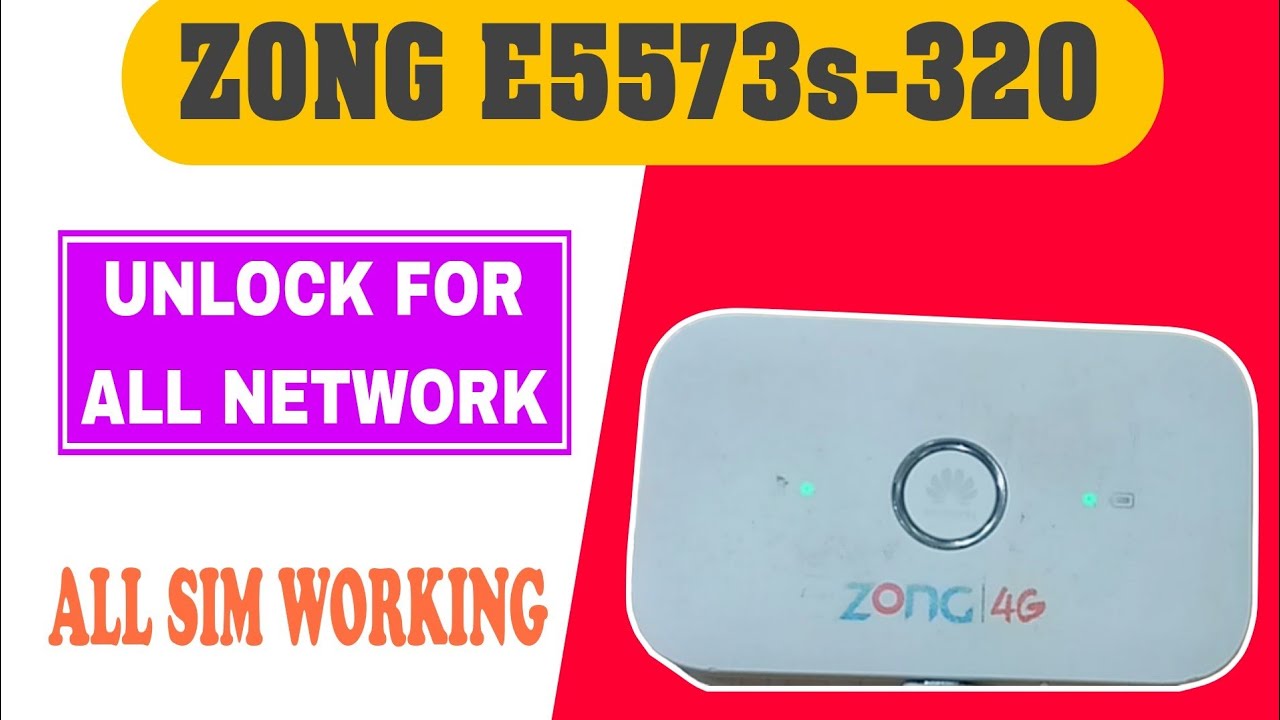
Zong E5573s-320 Unlocking
Software Version: 21.321.01.00.306
Hello friends! Today we will walk you through a highly detailed, step-by-step guide on how to successfully unlock your Huawei Zong E5573s-320 4G LTE pocket Wi-Fi router. The Zong E5573s-320 is one of the most widely used portable hotspots, featuring dual external antenna ports for signal boost and a robust chipset. However, out of the box, it is network-locked to Zong SIM cards. This means you are restricted from utilizing affordable packages offered by other mobile network providers like Jazz, Telenor, Ufone, or SCOM. By applying the official firmware flashing procedure described in this article, you can remove these manufacturer restrictions permanently. This unlocking solution is designed specifically for software version 21.321.01.00.306. Following this method will convert your device into a fully factory-unlocked pocket router that accepts any GSM network SIM card globally. Below, we have listed the primary technical specifications, essential preparation steps, and detailed instructions to perform this at home.
📺 Unlocking Method Tutorial Video
📋 Key Specifications
-
Device Brand & Model: Huawei Zong E5573s-320 portable Wi-Fi router. -
Network Compatibility: Global 4G LTE-FDD and 3G UMTS fallback bands. -
High-Speed Data: Supports maximum download speeds up to 150 Mbps and upload up to 50 Mbps. -
Battery Performance: Internal 1500 mAh battery offering up to 5 hours of continuous runtime. -
Multi-User Support: Connects up to 10 wireless clients simultaneously (smartphones, laptops, TVs). -
Antenna Support: Equipped with dual TS-9 interfaces for external MIMO signal antennas.
📋 Required Preparation
Before starting the update process, please make sure you meet the following requirements to prevent device failure:
-
A laptop or computer running Microsoft Windows operating system (Windows 7, 8, 10, or 11). -
A standard USB data cable to connect the pocket router to the PC’s USB port. -
The official Huawei USB drivers and Mobile Partner package installed properly on your computer. -
DC Unlocker client software installed to communicate with the router’s internal firmware. -
The unlock flashing firmware file package (downloadable from the secure links provided below).
📋 Step-by-Step Instructions
Please follow each step precisely to ensure a successful flash:
-
1Connect the Device: Connect your Zong E5573s-320 pocket router to your PC or laptop using a reliable USB data cable. Ensure the device is powered on.
-
2Launch DC Unlocker: Open the DC Unlocker client software as administrator on your computer.
-
3Detect the Modem: Select ‘Huawei modems’ as manufacturer and click the magnifying glass icon to search. Make sure your drivers are detected correctly.
-
4Check Firmware Version: Once detected, review the details in the log window and confirm your software version is 21.321.01.00.306.
-
5Force Download Mode: Type the command
AT^GODLOADin the DC Unlocker terminal and press Enter. The router will automatically reboot and display a black screen, indicating it is in download mode. -
6Run Flashing Utility: Open the downloaded unlock flashing package, launch the flashing executable, and when prompted for a password, type
saifi123. -
7Wait for Completion: The tool will write the unlocked firmware to the device. Please wait a few minutes until the progress bar reaches 100%. Do not disconnect the cable under any circumstances.
-
8Reboot the Router: After a successful flash, the router will perform a system reboot and return to normal operation.
-
9Apply Modem Reset: Re-detect the router in DC Unlocker, type the reinitialization command
AT^RESETin the terminal, and press Enter to clear network caches. -
10Test All Networks: Insert any SIM card from other operators (Jazz, Telenor, Ufone, SCOM) into the router slot, connect to its Wi-Fi, and browse the internet.
🛠️ Troubleshooting & Support Tips
If you encounter problems during the firmware upgrade, refer to these suggestions:
-
Modem Not Detected: Ensure Huawei Mobile Partner or virtual COM port drivers are correctly loaded. Check Windows Device Manager under Ports. -
Invalid Port Error: Try switching to a different USB port on your system. Using a USB 2.0 port instead of USB 3.0 often resolves serial communication issues. -
Direct Assistance: For online troubleshooting, file extraction assistance, or specialized help, you can contact our support team on WhatsApp at 0320-7311862.
Click the button below to initiate the secure download connection.