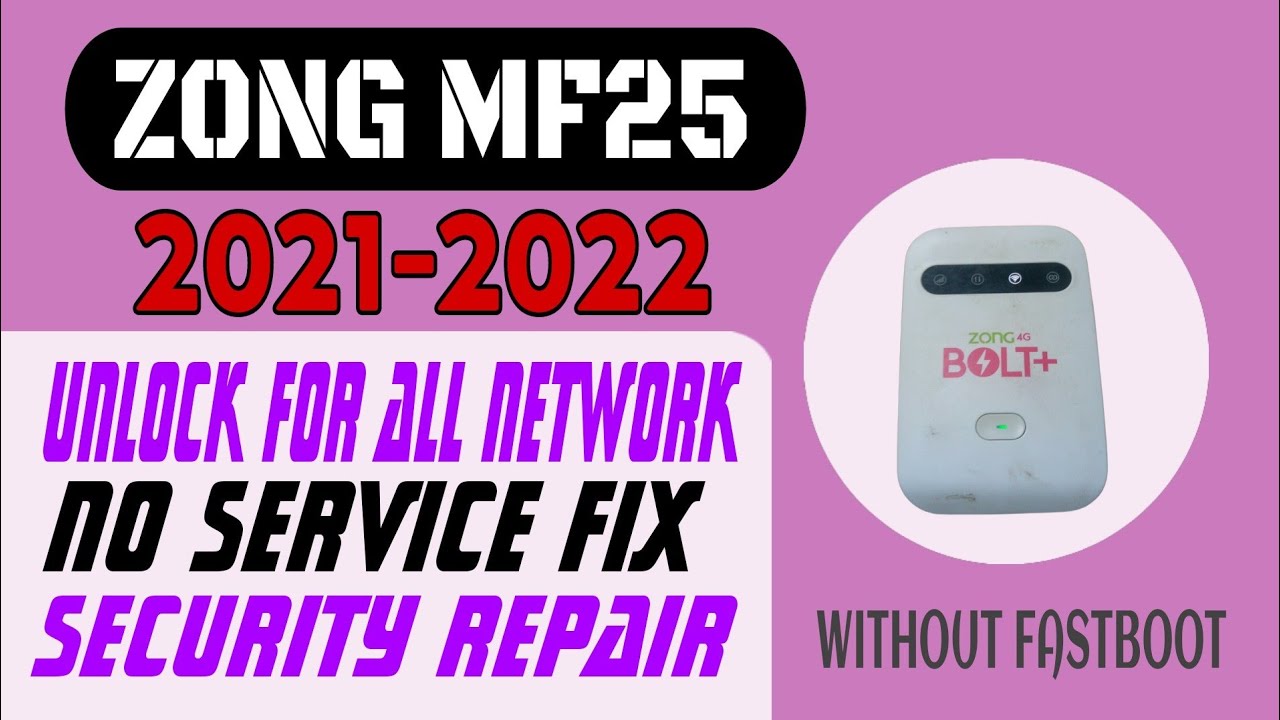
ZONG MF25 (2021-2023) non-fastboot Unlock for all sims
Qualcomm USB test point unlocking solution for Zong MF25 (2021-2023) non-fastboot devices.
Hello everyone! Today we will discuss an extremely detailed, technical guide on how to successfully unlock the Zong MF25 (2021-2023 version) non-fastboot wireless router to work on all network SIM cards. The Zong MF25 is a robust 4G LTE desktop gateway device designed to provide reliable internet sharing. However, units manufactured or updated between 2021 and 2023 are equipped with a non-fastboot bootloader that prevents traditional software-based unlock methods. These devices reject firmware upgrades and are strictly locked to the Zong cellular network. To bypass these restrictions, we must employ the Qualcomm EDL (Emergency Download Mode) test point interface. By bridging specific points on the motherboard, we can establish direct communication with the Qualcomm QDLoader 9008 port, enabling low-level flashing of unlocked partition parameters. Below, we have outlined the technical specifications, file requirements, and the complete motherboard flashing process.
📺 Unlocking Method Tutorial Video
📋 Technical Guide Overview
-
Compatible Router: Zong MF25 desktop routers manufactured between 2021 and 2023. -
Unlock Protocol: Qualcomm Emergency Download Mode (EDL 9008) USB flashing. -
Diagnostics Mode: Qualcomm HS-USB QDLoader 9008 or ZTE Diagnostic interface. -
Network Compatibility: Allows global compatibility for Jazz, Zong, Telenor, Ufone, and SCOM SIMs.
📋 Requirements and Files
Please ensure you have prepared the following items before dismantling your router casing:
-
A laptop or desktop computer running a clean installation of Windows OS. -
A high-quality micro USB data cable for stable connection during the flashing process. -
Official Qualcomm QDLoader 9008 drivers and ZTE USB COM port drivers installed. -
The MF25 non-fastboot flashing tool package (download link available at the bottom). -
Fine-tipped tweezers or a conductive wire clip to short the motherboard test points.
📋 Step-by-Step Instructions
Follow these step-by-step instructions carefully to avoid bricking your gateway device:
-
1Get the Files: Download the compressed Zong MF25 non-fastboot unlock package to your PC.
-
2Open Casing: Remove all screws and carefully open the Zong MF25 plastic housing to expose the motherboard.
-
3Remove Power: Disconnect the battery connector or power adapter to ensure the device is completely off.
-
4Short Test Points: Locate the designated Qualcomm test points on the board. Short these two points using metal tweezers while simultaneously connecting the USB cable to the PC.
-
5Check Device Manager: Open Device Manager. Confirm that the device is recognized under Ports as ‘Qualcomm HS-USB QDLoader 9008’ or ‘ZTE Diagnostic Port’.
-
6Extract and Run: Extract the downloaded tool archive, open the folder, and run the main unlock utility as administrator.
-
7Enter Tool Password: When the terminal window prompts for authentication, type the password
saifimobiles321and press Enter. -
8Select Unlock: Choose the unlock option corresponding to your exact hardware version from the menu.
-
9Set COM Port: Enter the active COM port number displayed in Device Manager (for example, if it shows COM64, type 64) and press Enter.
-
10Wait for Flash: The tool will write the custom partitions to the storage chip. Wait for the terminal to output a success message and close the port.
-
11Disconnect Cable: Disconnect the USB interface cable from the router board.
-
12Assemble Device: Insert the battery pack back, reconnect any internal antenna leads, and put the plastic casing back together.
-
13Power On and Use: Insert a SIM card from your preferred network provider (Jazz, Telenor, Ufone, SCOM) and boot the router. It is now ready to share internet.
⚠️ Important Warning
This unlock package is strictly meant for non-fastboot Zong MF25 revisions. Verify your router software version, manufacture year, and boot state before attempting EDL flashing. Flashing incompatible firmware parameters will result in a hard-bricked router. Always maintain a stable power supply and secure USB connections during the flashing operation.
📋 Troubleshooting & Assistance
If you encounter problems during the process, follow these guidelines:
-
QDLoader Port Not Found: Reconnect the test points carefully. Ensure you touch both contacts simultaneously before plugging in the USB cable. -
Driver Issues: Install the official Qualcomm 64-bit USB drivers and restart your computer to register COM interfaces. -
Online Unlocking Help: This is a premium unlocking solution. For access to files, extraction passwords, test point maps, or live remote session help, contact us directly via WhatsApp at 0320-7311862.
Click the button below to initiate the secure download connection.