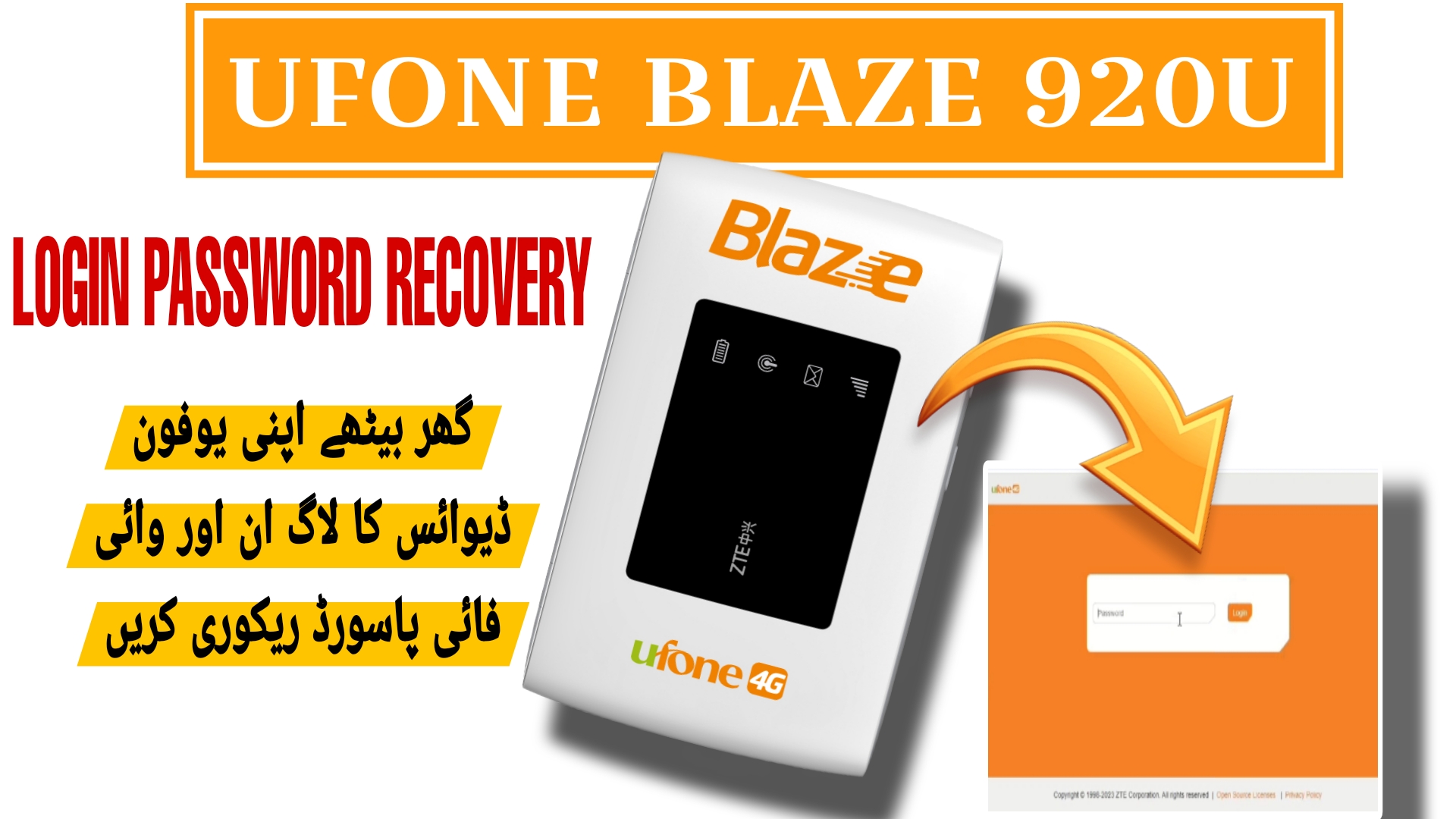
UFONE 920U LOGIN PASSWORD RECOVERY TOOL
Official recovery tool to retrieve lost login or Wi-Fi password for Ufone Blaze 920u & ZTE 920u devices.
لاگ ان پاسورڈ ریکوری گائیڈ
اس پاسورڈ ریکوری ٹول کی مدد سے آپ اپنی Zte/Ufone 920u ڈیوائس کا لاگ ان پاسورڈ ریکوری کر سکتے ہیں اور ویب پیج کو اوپن کر کے لاگ ان پاسورڈ لگا کر اپنی مرضی کا وائی فائی پاسورڈ تبدیل کر سکتے ہیں۔
Hello everyone! Today we will discuss a comprehensive guide on how to successfully retrieve and recover the forgotten login password of the Ufone Blaze 920u and ZTE 920u pocket Wi-Fi routers. Pocket routers are incredibly convenient for high-speed internet on the go, but forgetting the administrative login credentials can be a major hurdle. If you have misplaced or forgotten your Wi-Fi password or the primary admin login password used to access the web settings portal, you will find yourself locked out from modifying critical options. Without access, you cannot change the Wi-Fi network name (SSID), configure new security keys, adjust network modes, or manage SIM card settings. By utilizing this specialized ZTE COM port password recovery tool, you can easily read and retrieve your device’s existing login credentials without performing a hard factory reset that might wipe out important configuration files. This article provides detailed device specifications, a preparation checklist, step-by-step instructions, and diagnostic advice to help you restore admin access safely from home.
📋 Technical Tool Specifications
-
Supported Devices: Ufone Blaze 920u, ZTE MF920U, and compatible ZTE-based pocket Wi-Fi routers. -
Core Features: Reads and retrieves the administrative web portal login passwords directly from NVRAM storage. -
Operation Mode: Communicates through the ZTE AT Command interface via virtual serial COM ports. -
Safety Protocol: Securely resets communication ports back to normal NDIS/modem mode after reading data. -
OS Compatibility: Fully compatible with Microsoft Windows XP, 7, 8, 10, and Windows 11 (both 32-bit and 64-bit architectures).
📋 Essential Preparation Checklist
Before beginning the password recovery process, make sure you have prepared the following requirements to prevent communication errors during the port scanning phase:
-
A fully functional computer or laptop running Microsoft Windows operating system with administrative privileges. -
A high-quality standard micro USB data cable (ensure it supports data transfer, not just power charging). -
The official ZTE USB driver package installed on your computer so that the virtual COM ports can be recognized. -
The compressed password recovery tool package (available for download at the bottom of this guide). -
Temporarily disable Windows Defender or third-party antivirus software to prevent false positive blocks on COM port communications.
📋 Step-by-Step Recovery Instructions
Follow these precise steps to read your Ufone or ZTE 920u device admin password:
-
1Install ZTE Drivers: First, run and install the ZTE USB drivers on your computer to ensure correct device identification.
-
2Connect the Device: Turn on your Ufone / ZTE 920u device, insert a SIM card (optional), and connect it to your PC using the USB cable.
-
3Extract the Package: Extract the downloaded RAR archive file to a dedicated folder on your computer desktop using WinRAR or 7-Zip.
-
4Run the Executable: Open the extracted directory, locate the tool executable file, right-click it, and choose ‘Run as administrator’.
-
5Enable Diagnostics Mode: Press option 1 in the main menu of the tool. This triggers the device to open diagnostic COM ports. Open your Windows Device Manager to verify that two new ZTE ports appear.
-
6Select Recovery Option: Press option 2 in the tool menu to prepare the system for the AT interface communication.
-
7Enter COM Port Number: Look at Windows Device Manager under the ‘Ports (COM & LPT)’ section, identify the COM port number assigned to the ‘ZTE AT Interface’ (e.g., if it shows COM64, your number is 64), type this number in the tool console, and press Enter.
-
8Read Login Password: The recovery utility will send diagnostic query commands to read the internal memory. The device’s current administrative login password will be displayed on the screen. Make a note of this password.
-
9Prepare Mode Reset: Press option 3 in the tool menu to exit the debug interface and restore default operations.
-
10Reset Communication Ports: Type the same ZTE AT Interface COM port number again and press Enter. This will safely reset the router’s ports, returning the device to standard network connection mode.
-
11Login and Configure: Disconnect the USB cable, connect to the router’s Wi-Fi network, open a web browser, go to
192.168.8.1(or your router’s default IP), and log in successfully using your recovered password.
🛠️ Troubleshooting & Support Tips
If you face any issues while installing drivers or detecting the ports, try the following steps to resolve the problem:
-
Port Detection Issues: If no ports appear in the Device Manager, try using a different USB port on your PC (preferably a USB 2.0 port) or swap the USB cable. -
Driver Failures: Reinstall the ZTE drivers and restart your computer to ensure the virtual COM ports bind correctly to the device. -
Antivirus Blocks: Ensure that your security software is not blocking the execution of the tool, as reading serial ports can sometimes trigger security alerts. -
Direct Help: If you face any issues while installing drivers or detecting the ports, feel free to contact us on WhatsApp at 0320-7311862 for assistance. The download link for the tool package is provided below.
Click the button below to initiate the secure download connection.