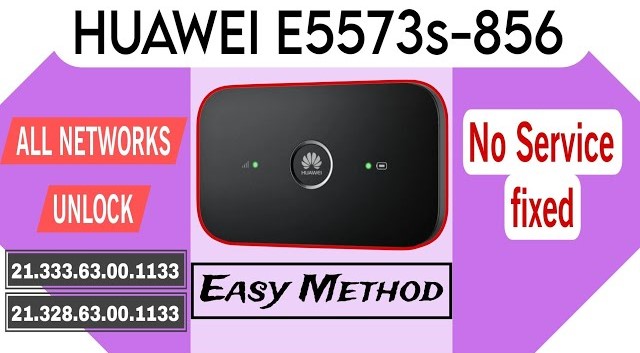
HUAWEI E5573s-856 ALL NETWORKS UNLOCK AND NO SERVICE FIX
Supported Versions: 21.328.62.00.1133, 21.328.63.xx.1133 & 21.333.xx.1133
Hello friends! Today we are sharing the complete unlocking and no service signal repair guide for the Huawei E5573s-856 pocket Wi-Fi router. The Huawei E5573s-856 is a premium, high-speed 4G LTE mobile hotspot distributed across various regions. By default, this device is locked to a single network provider, meaning you cannot use it with other carriers. When you insert a different network SIM card (like Jazz, Zong, Telenor, Ufone, or SCOM), the device will show a ‘No Service’ message or network connection error. Unlocking this router can be quite challenging, especially for newer security software versions such as 21.328.62.00.1133, 21.328.63.xx.1133, and 21.333.xx.1133, which have patched traditional flashing methods. In this guide, we provide a complete step-by-step unlock tutorial and signal fix solution using our custom firmware flashing tool.
To successfully unlock this device and restore signal services, the pocket router must be booted into firmware download mode. This process requires a Windows computer, Huawei mobile drivers, and a terminal tool like DC Unlocker. By sending diagnostic AT commands, the device security configurations can be modified. Our specialized paid firmware tool patches the internal modem partition blocks, restoring full 4G LTE compatibility for all operators. It is highly recommended to use a premium quality USB cable and connect to a direct USB port on your PC to avoid data transmission dropouts. Follow the requirements checklist and detailed step-by-step instructions below to unlock your device safely.
📋 Technical Device Specifications
-
Device Type: 4G LTE Mobile Wi-Fi Hotspot pocket router. -
Download Speeds: Peak speeds up to 150 Mbps downlink and up to 50 Mbps uplink. -
Interactive Connectivity: Allows up to 10 wireless users/devices to connect simultaneously. -
Battery Capacity: Removable 1500 mAh lithium-ion battery offering up to 4 to 6 hours of active usage. -
Carrier Support: Once unlocked, it operates seamlessly on all GSM SIM cards (Jazz, Zong, Telenor, Ufone, SCOM).
📋 Requirements Checklist
-
Windows PC or laptop running Windows 7, Windows 8, Windows 10, or Windows 11. -
Standard high-quality Micro USB cable for reliable data transfer. -
Huawei USB COM port drivers and ZTE diagnostic drivers package. -
DC Unlocker terminal client desktop setup for AT commands execution. -
The E5573s-856 repair file pack (paid solution, contact us on WhatsApp to acquire the files and password).
📋 Step-by-Step Flashing Instructions
-
1First, download and install the Huawei mobile drivers on your computer to ensure correct port detection.
-
2Connect your powered-on Huawei E5573s-856 pocket router to your computer using the USB cable.
-
3Run the downloaded unlock tool utility on your PC and enter the executable password when prompted.
-
4Open the DC Unlocker client software on your desktop as Administrator.
-
5Set manufacturer to Huawei modems, set model to auto-detect, and click on the magnifying glass search button.
-
6Wait a few seconds until DC Unlocker successfully displays the device’s current software and IMEI information.
-
7In the terminal window at the bottom of DC Unlocker, type the command
AT^GODLOADand press Enter to boot the router into download mode. -
8Run the unlock flash executable file from the extracted tool directory and wait for the partition write progress to reach 100%.
-
9Once the flashing process is finished, the router will turn on automatically. Do not disconnect the cable.
-
10Perform the security repair option in the utility tool to restore IMEI and baseband configurations.
-
11After repairing security blocks, write the command
AT^INFORBUin the DC Unlocker terminal and press Enter. -
12Finally, execute the
AT^RESETcommand in the terminal to reboot the device into user mode. -
13Now, you can insert any SIM card (Jazz, Zong, Telenor, Ufone, Scom) and verify that signal bars are active.
📋 Troubleshooting Tips
-
Diagnostic Port Fails: If DC Unlocker fails to find the device, make sure the wingle is connected directly to a USB 2.0 port and reinstall drivers. -
AT Command Error: If theAT^GODLOADcommand returns an error, verify that the current firmware version is supported by the tool version. -
Antivirus Intervention: Ensure all firewall and defender protections are temporarily disabled during execution to prevent partition corruption.
This signal repair and unlocking file is a paid solution. If you need to buy the files, get the tool password, or require online support for drivers setup, please reach out to us on WhatsApp at 0320-7311862. We provide complete guidance to make sure your router is successfully unlocked and working on all networks.