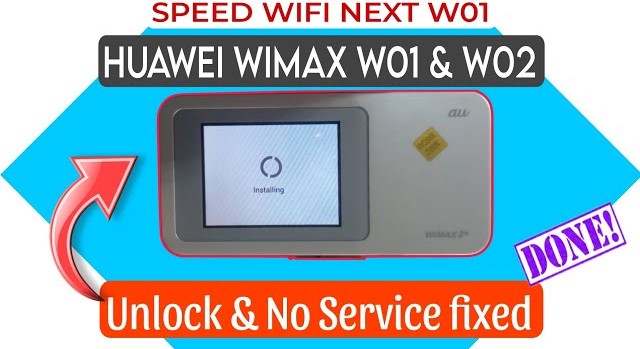
HUAWEI SPEED WI-FI NEXT W01/W02 ALL NETWORK SIM FIX AND NO SERVICE FIX
Complete guide to unlock and repair signal issues on Huawei Speed Wi-Fi Next W01 and W02 routers.
Hello friends! In this guide, we are going to learn how to unlock the Huawei Speed Wi-Fi Next W01 and W02 pocket routers and fix the no service network problem. These pocket routers are imported and very handy for mobile internet. But they come with network lock restrictions. This means they do not support local mobile networks. By using our special unlocking tool, you can easily open all SIM card support on these devices. In this post, I will share the step-by-step flashing method. Below you can see the router specifications, unlocking requirements, and the complete flashing steps.
📋 Router Specifications
-
Model Name: Huawei Speed Wi-Fi Next W01 & W02. -
Mobile Network Type: Supports 4G LTE and 3G connections. -
Color Options: Available in Pink, Blue, and White. -
Screen Display: Color Touch Screen display to access router menus. -
Wi-Fi Sharing: Connect up to 10 devices at the same time. -
Battery Backup: 2300 mAh battery capacity for steady mobile internet.
📋 Unlocking Requirements
-
A Windows computer or laptop. -
A compatible USB cable to connect the pocket router. -
Huawei USB drivers installed on your computer. -
The W01/W02 unlock and repair tool files (this is a paid solution, contact us on WhatsApp to purchase the file and password).
📋 Step-by-Step Instructions
-
1Turn on the router normally and connect it to your PC using the USB cable.
-
2Open the unlock tool on your computer and install the Huawei drivers.
-
3Select option one in the tool to open the communication port.
-
4Press option two, then type the port type as FC UL INTERFACE and press Enter. The router will boot into installing mode.
-
5Select option three in the tool to downgrade the router firmware.
-
6Once the downgrade is finished, reset the device.
-
7Proceed with option four and option five in the tool to apply the unlock files.
-
8Select option six to restore the QCN file for signal restoration.
-
9Select option seven, type the security and SSID details, and press Enter.
-
10Now, connect the router again in installing mode.
-
11Select option eight to install the latest update file.
-
12Once the update is finished, reset the device using option nine.
-
13Insert your new network SIM card into the router and restart it.
-
14When the router turns on, go to the network settings menu on the touch screen and turn on the Roaming option.
Please note that this is a professional paid solution. If you face any issues while installing drivers or running the options, we provide complete online unlocking support. You can contact us directly on WhatsApp at 0320-7311862. The download link for the tool package is provided below.
Click the button below to initiate the secure download connection.