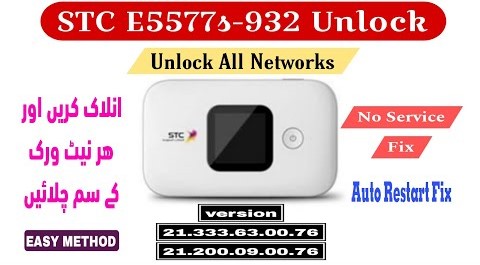
HUAWEI STC E5577s 932 ALL NETWORKS UNLOCK
Supported Versions: 21.333.63.00.76 & 21.200.09.00.76
Hello friends! Today we will talk about how to unlock the Huawei STC E5577s-932 pocket Wi-Fi router to use any SIM card. Many users have this device but it is locked to the STC network, which means you cannot use local network SIM cards like Jazz, Zong, Telenor, or Ufone in it. In this guide, I will share the working method to unlock this device easily at home. This guide is for the supported firmware versions 21.333.63.00.76 and 21.200.09.00.76. By following this method, you can unlock your device without any issues. Below you will find the specifications, requirements, and the complete unlock instructions.
The Huawei E5577s-932 is a popular, battery-powered 4G LTE portable hotspot router widely distributed by Saudi Telecom Company (STC). When these units are imported to other regions, their network band configurations are restricted, which triggers a “No Service” status when a local SIM is inserted. The newer firmware versions (21.333.63.00.76 and 21.200.09.00.76) have closed the basic browser-based firmware updates. To unlock these devices, technicians use a specialized diagnostic connection. This process forces the device to enter download mode where a custom loader partition script can write the unlocked baseband files. Using this guide, you can restore full network signals for all major GSM providers, including Jazz, Zong, Telenor, Ufone, and SCOM.
The unlocking procedure requires connecting the router to a Windows PC using a standard micro USB data cable. It is essential to ensure that you have installed the correct Huawei USB drivers beforehand so the computer can properly communicate with the diagnostic COM port. Using terminal tools like DC Unlocker, specific AT commands are sent to the router’s baseband processor to initialize the bootloader interface. This enables the flashing utility to write the new unlocked partition tables. The entire process takes approximately 3 to 4 minutes. Please follow all prerequisites and step-by-step instructions below carefully to avoid bricking your pocket router.
📋 Technical Device Specifications
-
Device Category: 4G LTE Mobile Wi-Fi Hotspot pocket router. -
Interactive Display: Small LCD display screen for monitoring battery, active connections, and signal status. -
User Support: Connects up to 10 active devices (such as smartphones, tablets, smart TVs, and laptops) simultaneously. -
Network Capability: Fully supports LTE-FDD, LTE-TDD, and HSPA 3G bands. -
Battery Performance: Premium battery pack providing up to 6 hours of continuous operation on a single charge. -
Carrier Compatibility: Restores compatibility for Jazz, Zong, Telenor, Ufone, SCOM, and international SIMs.
📋 Unlocking Requirements
-
Windows PC or laptop running Windows 7, Windows 8, Windows 10, or Windows 11. -
High-quality micro USB data cable to ensure a stable interface connection. -
Huawei Mobile Partner drivers package and Qualcomm serial COM drivers. -
DC Unlocker terminal client desktop application for terminal control. -
The E5577s-932 unlock files directory (paid solution, contact us on WhatsApp for access).
📋 Step-by-Step Instructions
-
1First, download and install the Huawei mobile drivers on your Windows PC to ensure proper port registration.
-
2Connect your Huawei STC E5577s-932 pocket Wi-Fi router to the computer using the USB cable.
-
3Download the paid unlock package files from the link below and save the zip archive on your desktop.
-
4Open the DC Unlocker application as Administrator on your computer.
-
5Set the manufacturer to “Huawei modems”, select auto-detect model, and click the magnifying glass search button.
-
6Wait for the utility to scan the port and verify that the firmware information is displayed in the status log.
-
7Type the command
AT^GODLOADin the DC Unlocker terminal box and press Enter to switch the router to download mode. -
8Launch the unlock setup exe file from the extracted folder, input the password, and initiate the flashing process.
-
9Keep the connection stable and wait for the flashing utility progress bar to reach 100%. The router will automatically restart.
-
10Choose the security repair option from the tool menu to restore original IMEI parameters.
-
11Enter the
AT^INFORBUcommand in the DC Unlocker console and press Enter. -
12Finally, execute the
AT^RESETcommand in the terminal to reboot the device into user mode. -
13Now, you can insert any other operator SIM card (Jazz, Zong, Telenor, Ufone, SCOM) and verify active network signals.
📋 Troubleshooting Tips
-
Diagnostic Port Error: If the search tool fails to detect the router, try changing the USB cable or use a back USB 2.0 port on the PC. -
Antivirus Shield Block: If the flashing executable fails to run, temporarily turn off Windows Defender or your antivirus shield. -
No Network Signal: In case the device shows no service after flash, perform a factory reset from the admin settings panel (192.168.8.1).
This tool and unlock file is a paid solution. If you need the files or have any issues during driver installation, you can directly contact us on WhatsApp at 0320-7311862. We provide complete help and guides to our users. For video demonstration, you can also check the method video linked below.
Click the button below to initiate the secure download connection.