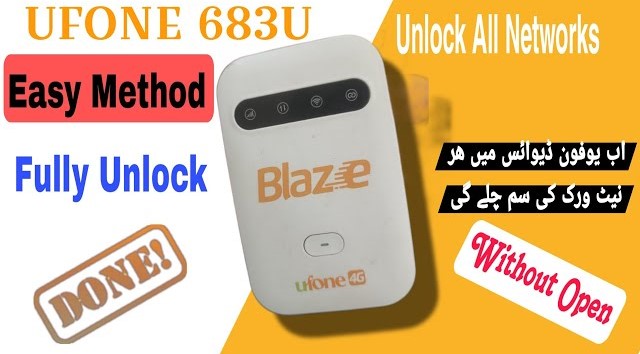
Ufone 683U All SIM Working Unlock Guide
Official Qualcomm test point unlock file and complete guide for Ufone 683U router.
Hello friends! Today we will share the official and tested method to unlock the Ufone 683U portable pocket Wi-Fi router for all SIM cards. The Ufone 683U is a highly popular, compact 4G mobile hotspot. By default, this device is locked to the Ufone network, restricting users from enjoying data plans of other networks. Unlocking this router is a bit different because it cannot be unlocked via standard WebUI upgrades or network unlock codes. Instead, we must utilize the Qualcomm Test Point (EDL Mode) method to flash a modified partition script directly to the device motherboard. Once unlocked, this router will support all mobile network SIM cards in Pakistan, including Jazz, Zong, Telenor, Ufone, SCOM, and Warid.
The test point method requires opening the device casing to access the motherboard. By shorting two specific metal contact points (known as test points) using a pair of tweezers or a copper wire while plugging in the USB data cable, you force the Qualcomm processor to enter the emergency download (EDL) mode. In Device Manager, the device must register as Qualcomm HS-USB QDLoader 9008. This mode allows deep firmware flashing without bootloader restrictions. It is extremely important to have high-quality Qualcomm USB port drivers installed beforehand to prevent write failures. Our custom flashing script will handle the partition restructuring and security block adjustments automatically in just a few minutes.
Before you start, make sure your computer has the correct setup. A stable USB data connection is very important during EDL flashing because any disconnection can damage the router’s boot partition. Remove the back cover, battery, and SIM card from the device, then open the plastic housing. Short the test points using metal tweezers, connect the USB cable, and verify the COM port in Device Manager. Extract the downloaded unlock files on your desktop and run the flashing utility tool as Administrator. Follow the step-by-step instructions below to ensure a safe and successful unlock.
📋 Technical Specifications
-
Device Model: Ufone 683U 4G pocket LTE Hotspot router. -
Processor Platform: Qualcomm baseband processor architecture. -
Unlocking Mode: Qualcomm Test Point (EDL Mode) direct partition rewriting mode. -
Supported SIM networks: Jazz, Zong, Telenor, Ufone, SCOM, Warid (All SIMs working). -
Flashing interface software: Qualcomm QDLoader 9008 tool script.
📋 Unlocking Requirements
-
Windows PC or laptop running Windows 7, 8, 10, or 11. -
High-quality Micro USB data cable to prevent transfer dropouts. -
Official Qualcomm QDLoader 9008 ports connection drivers and setup files. -
Tweezers or a conductive wire to short motherboard test points. -
Ufone 683U official unlock firmware folder (download link available below).
📋 Step-by-Step Instructions
-
1Remove the battery cover, battery, and SIM card from your Ufone 683U router.
-
2Carefully open the outer plastic housing of the router to access the green motherboard.
-
3Locate the two designated gold test points on the circuit board.
-
4Use a pair of metal tweezers to short/connect these two test points together.
-
5While keeping the points shorted, plug the USB data cable into the device and connect it to your PC.
-
6Open Device Manager on your computer and verify that “Qualcomm HS-USB QDLoader 9008” is visible under COM ports.
-
7Extract the downloaded Ufone 683U unlock tool archive folder on your desktop.
-
8Open the tool folder and run the flashing utility executable (.exe) as Administrator.
-
9Select Option 1 from the tool menu, type your specific Qualcomm COM port number, and press Enter to start the flashing process.
-
10Once finished, assemble the router. Insert a different carrier SIM card, connect the router via USB, and run Option 2 to repair security blocks and reboot.
📋 Troubleshooting Tips
-
EDL COM port fails to appear: If the COM port does not appear, ensure you are shorting the correct test points properly and that the Qualcomm drivers are fully installed. -
USB writing disconnection errors: Flashing data flow error prevent karne ke liye extra hub wires disconnect karein aur directly back panel USB 2.0 interface connect karein. -
No Signal after unlock: Log in to the web panel (192.168.8.1) and configure the APN settings manually or perform a factory reset.
If you face any issues like driver not installing or port not showing, check your USB cable or try another USB port on your PC. For any help, you can contact us on WhatsApp. The download link for the tool is given below.
🎥 Video Method
Paid Solution Only
Please contact us on WhatsApp to get access to this method video.
Click the button below to initiate the secure download connection.