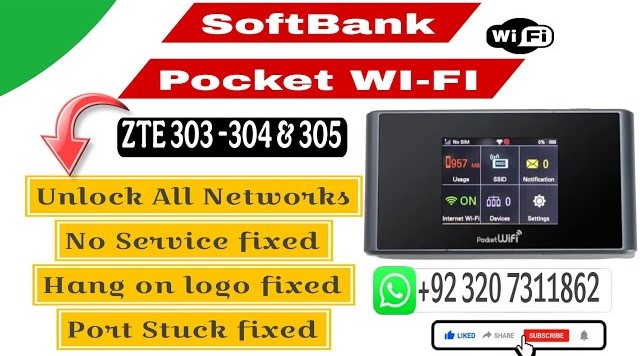
ZTE 303zt, 304zt & 305zt Unlock and No Service Fix
Complete guide to unlock and repair signal service issues on ZTE pocket Wi-Fi devices.
Hello friends! Today we will talk about how to unlock ZTE 303zt, 304zt, and 305zt pocket Wi-Fi routers and fix the no service issue. Many users face a problem where their device gets locked to a single network or shows no signal/no service when inserting other SIM cards. This post provides the complete unlocking and no service fix guide using our professional tool. The ZTE 305zt is a powerful 4G LTE pocket Wi-Fi router with a 2700 mAh battery that can connect up to 10 users at the same time. Below you will find the specifications and the complete step-by-step unlock method.
In this detailed guide, we are sharing the official and 100% working method to unlock ZTE pocket Wi-Fi devices (including 303zt, 304zt, and 305zt models) locked to Japanese networks and resolve the persistent “No Service” signal issue. Since these pocket routers are originally locked to SoftBank or Y!Mobile carriers, their default configurations do not support local network SIM cards (such as Jazz, Zong, Telenor, Ufone, and SCOM) in Pakistan. When you insert a local SIM card, the screen displays “Invalid SIM” or a permanent “No Service” message. In some cases, even after a temporary unlock, the device loses signals completely after a factory reset. Fortunately, by using our custom tool and flashing procedure, you can permanently patch the software configurations and baseband files to keep the signals active.
This flashing method works by opening the device’s diagnostic interface port to update security parameter files (QCN) and network registers. Before you start the flashing process, it is absolutely essential to install the correct drivers on your PC. If the drivers are not registered properly, the flashing utility will fail to connect with the device, and the write script will time out. For this operation, we recommend using a premium quality Type-C data cable and temporarily disabling the Windows firewall to prevent any serial COM block interruption. Follow the hardware prerequisites and manual step-by-step instructions below to unlock your device safely without causing any damage.
📋 Technical Specifications
-
Device Models: ZTE 303zt, ZTE 304zt, and ZTE 305zt pocket Wi-Fi hotspot devices. -
Battery Capacity: 2700 mAh rechargeable battery providing 8 to 10 hours of continuous usage. -
User Connectivity: Supports up to 10 active devices or users connecting at the same time. -
Network Support: Fully compatible with 4G LTE-FDD, LTE-TDD, 3G HSPA+, and 2G mobile networks. -
Unlocking Mode: Direct USB COM Port connection setup via diagnostic serial interface mode.
📋 Requirements and Pre-requisites
-
Windows PC (Windows 7, 8, 10, or 11 operating systems). -
High quality micro USB data cable jo continuous data transfer check clear rakhe. -
Official ZTE diagnostic COM port control drivers pack installation. -
Flashing files security detection block prevent karne ke liye antivirus temporarily disable karein. -
Paid unlock files package and license key keys (WhatsApp link below for purchase).
📋 Step-by-Step Instructions
-
1Download and install the official ZTE USB diagnostic drivers on your Windows computer.
-
2Purchase the paid unlock package files from our WhatsApp support team and extract the archive folder on your desktop.
-
3Connect your ZTE pocket Wi-Fi router to your computer using the USB cable while the device is powered on.
-
4Launch the flashing utility tool and choose Option 1 to successfully initialize and open the diagnostic communication port.
-
5Select Option 2 from the tool menu to start the firmware partition write and security patch process.
-
6Once the write operation is complete, wait for the pocket Wi-Fi device to automatically reboot itself.
-
7After the device restarts, choose Option 3 in the utility menu to perform the security baseband repair.
-
8Select Option 4 from the menu to restore the ZTE-specific QCN file to recover the original network signal calibrations.
-
9Choose Option 5 to clean and refresh the active COM communication port connection.
-
10Finally, select Option 6 to install the network service fix files onto the device’s system partitions.
-
11Unplug the USB cable, insert any network operator SIM card (Jazz, Zong, Telenor, Ufone, SCOM) and verify signal bars.
📋 Troubleshooting Tips
-
No COM Port Detected: If the utility tool shows a blank status, try using another USB port (USB 2.0 is recommended) and check your cable connection. -
Antivirus Interception: If the flashing script stops executing, verify that your antivirus shield is temporarily disabled. -
No Service Message: Open the device web management dashboard (192.168.128.1) in your browser and verify that network mode is set to Auto.
Please note that this is a professional paid solution. If you need the unlocking files, tool password, or help with driver setup, you can connect with us directly on WhatsApp at 0320-7311862. We offer online support to help you run the process.